
How to Refer a Friend and Earn Rewards with Vizitor

Ankur Rana
Wed, Sep 28, 2022
Read in 1 minutes
Step 1: Log In to Your Dashboard
Login to your Vizitor dashboard.
Step 2: Open the FAQs Tab
Click on the FAQs tab from the top panel.
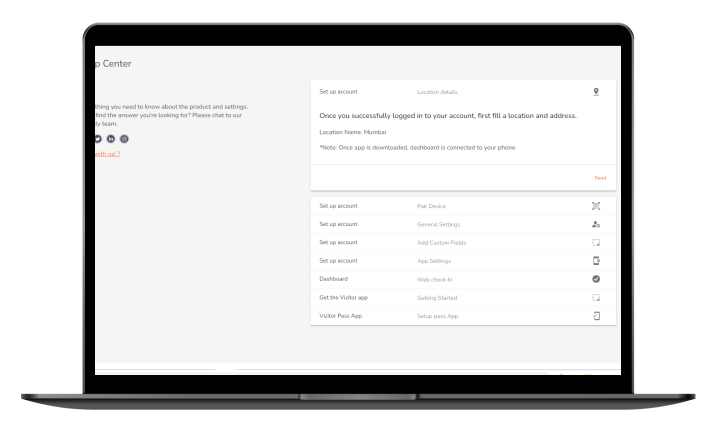
Step 3: Open Refer a Friend
Click on Refer a Friend tab from the left panel.
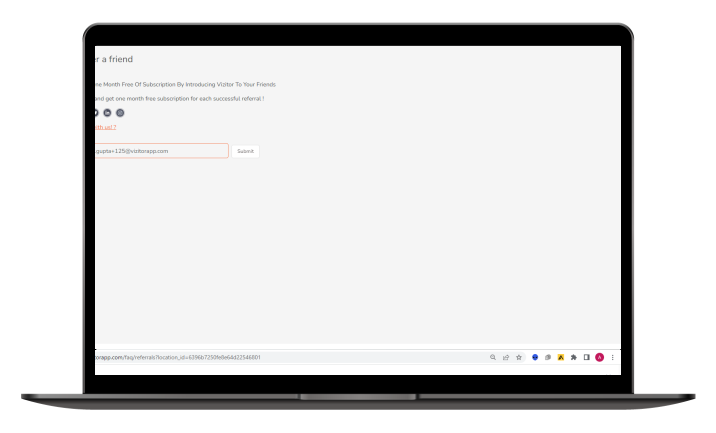
Step 4: Send Your Invite
Once you are in the refer a friend section you can either invite your friend by typing their email address and clicking on the invite button or you share a personalized URL directly to them via a SMS or Email.
Step 5: Track Your Referrals
You can also click on Analytics to see which of your invitees has successfully signed up and what is their subscription status. In addition to that you can also check the email address that has already signed up with Vizitor.
Frequently Asked Questions
Log in to your dashboard, open the FAQs tab, click “Refer a Friend,” and invite your friend by email or by sharing your personalized referral URL.
It’s under the FAQs tab in the top panel of your Vizitor dashboard, accessible from the left panel menu.
Click Analytics in the Refer a Friend section to see which invitees have signed up and their subscription status.
Yes. You can share your personalized referral URL directly via SMS or email instead of typing the friend’s email address.
Table of Contents