

Thu, Oct 13, 2022
Read in 2 minutes
Vizitor is available in almost every language and changing a language is very easy with Vizitor.
Step 1: Open the Vizitor App
Open the Vizitor mobile app on your mobile phone.
Step 2: Reach the Pair Device Screen
When you open the Vizitor app, you will be greeted with a screen prompting you to pair your device.
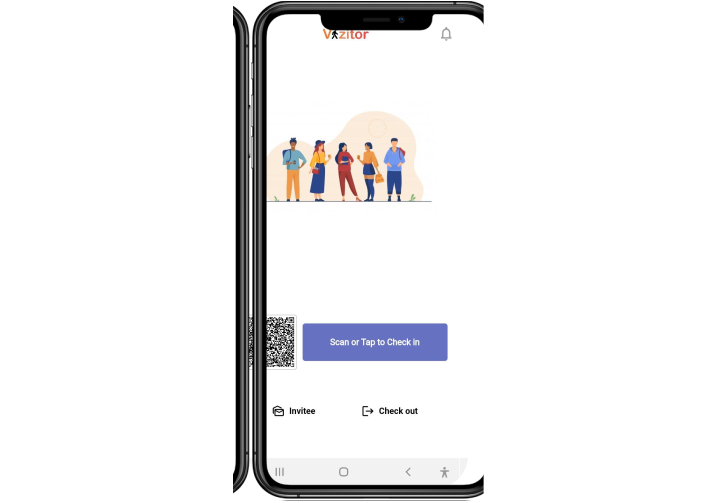
Note: This simple and straightforward process allows you to establish a connection between your device and the Vizitor app, ensuring seamless functionality and access to all the features. Start by following the on-screen instructions to successfully pair your device and unlock the full potential of Vizitor’s visitor management capabilities.
Step 3: Change the Language
On the pair device screen, you can easily change the language in the Vizitor app. Simply tap or click on the web icon, and you will be presented with various options, including the ability to change the language.
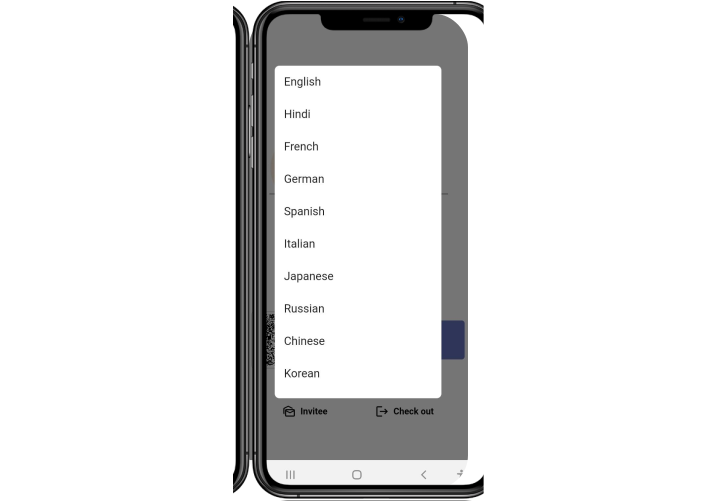
Note: On the pair device screen of the Vizitor app, you’ll find a convenient language change feature. By tapping or clicking on the web icon, a menu will appear with several options, including the ability to switch to a different language. This empowers you to customise the app according to your preferred language, ensuring a more user-friendly and personalised experience. Effortlessly adapt Vizitor to your language preferences and enhance your visitor management process with ease.
Note: This convenient feature allows you to customise the app to your preferred language, ensuring a more user-friendly and personalised experience. Effortlessly adapt Vizitor to your language preferences and streamline your visitor management process.
Frequently Asked Questions
Open the Vizitor mobile app, go to the pair device screen, tap the web icon, and select your preferred language from the options shown.
Yes, Vizitor is available in almost every language, and you can switch between them directly from the pair device screen.
The language option is on the pair device screen, accessible by tapping or clicking the web icon.
The language setting is changed from the pair device screen, so you can update it whenever that screen is accessible on your device.