
How to Add a New Employee to Your Vizitor Dashboard

Ankur Rana
Wed, Oct 5, 2022
Read in 2 minutes
Employees are very crucial for every business and providing them easy accessibility to premises is even more crucial. Vizitor allows you to add your employees manually and adding them in Vizitor is very easy.
Step 1: Log In to Your Dashboard
Login to your Vizitor dashboard.
Step 2: Open the Employee Tab
Click on the Employee tab from the top panel.
Step 3: Create a Department
Firstly Click the department button on the top bar and create the department for Employee.
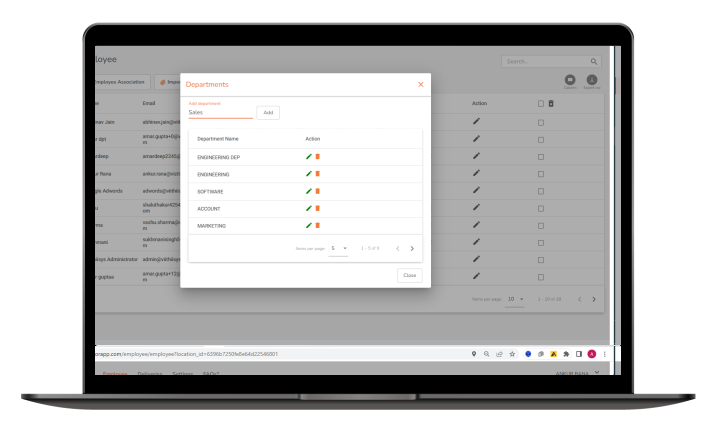
Step 4: Add the Employee
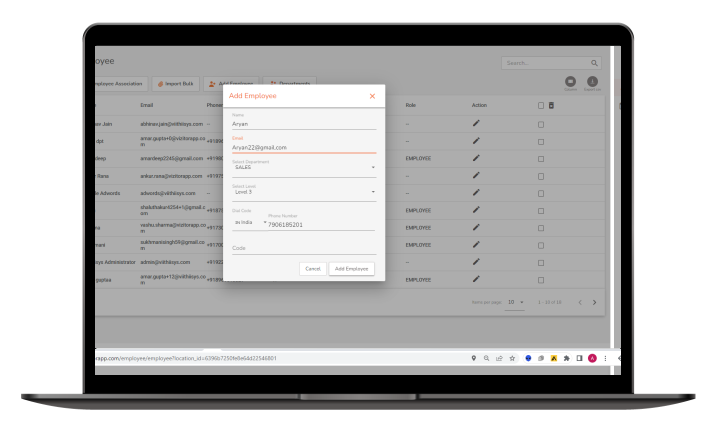
Click on the Add Employee button and provide all the required details.
Note: Simplify the process of adding employees to your Vizitor system by clicking on the “Add Employee” button and providing all the required details. Make sure to enter accurate and up-to-date information for each employee, including their name, email address, and any other relevant details. This will enable a seamless employee management experience within Vizitor, ensuring smooth visitor interactions and effective communication between employees and visitors.
Step 5: Confirm Employee Added
Once you have filled in all the details. You’ll get a success notification of employee added successfully and you’ll find the details in your dashboard.
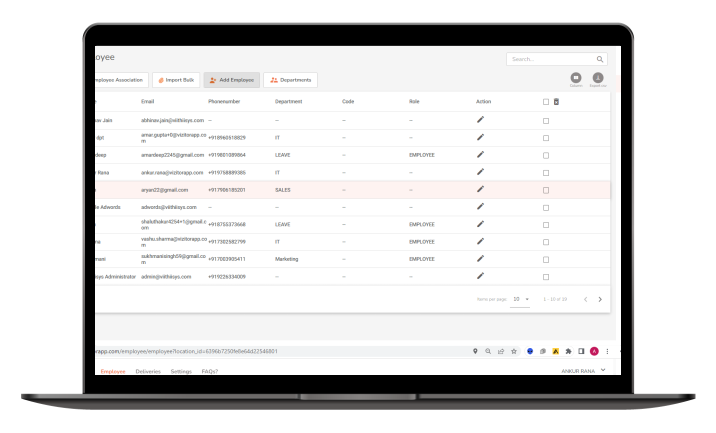
This streamlined employee management feature in Vizitor empowers you to efficiently oversee and manage your employees. With the ability to easily access and update employee details from your Vizitor dashboard, you can ensure that your visitor management process is efficient and well-organized. By having a centralized system for employee information, you can effectively communicate important updates, track employee interactions with visitors, and maintain accurate records. This seamless integration of employee management within Vizitor enhances your organization’s overall visitor experience and facilitates smooth communication and collaboration between employees and visitors.
Frequently Asked Questions
Log in to your dashboard, open the Employee tab, create a department if needed, then click "Add Employee" and fill in their details such as name and email address.
Yes. Click the department button on the top bar of the Employee tab to create a department first, then add employees to it.
You need the employee's name, email address, and any other relevant details requested in the "Add Employee" form.
Vizitor shows a success notification once the employee is added, and the new employee's details immediately appear in your dashboard.