10 Video Conferencing Etiquette Tips for Better Meetings
This article gives 10 tactical video conferencing etiquette tips focused specifically on the camera-and-audio side of video calls: testing tech beforehand, camera framing, front-facing lighting, clean backgrounds, muting by default, looking at the camera, dressing for the meeting's actual stakes, deliberate screen sharing, handling distractions off-camera, and ending calls on time and gracefully. It includes a 60-second pre-call checklist, common mistakes teams make when nobody agrees on a shared baseline, and when strict camera-on and lighting discipline matters less than others. It deliberately excludes broader meeting-culture etiquette like agendas and turn-taking, which Vizitor covers separately in a more detailed guide on virtual meeting etiquette for remote teams.


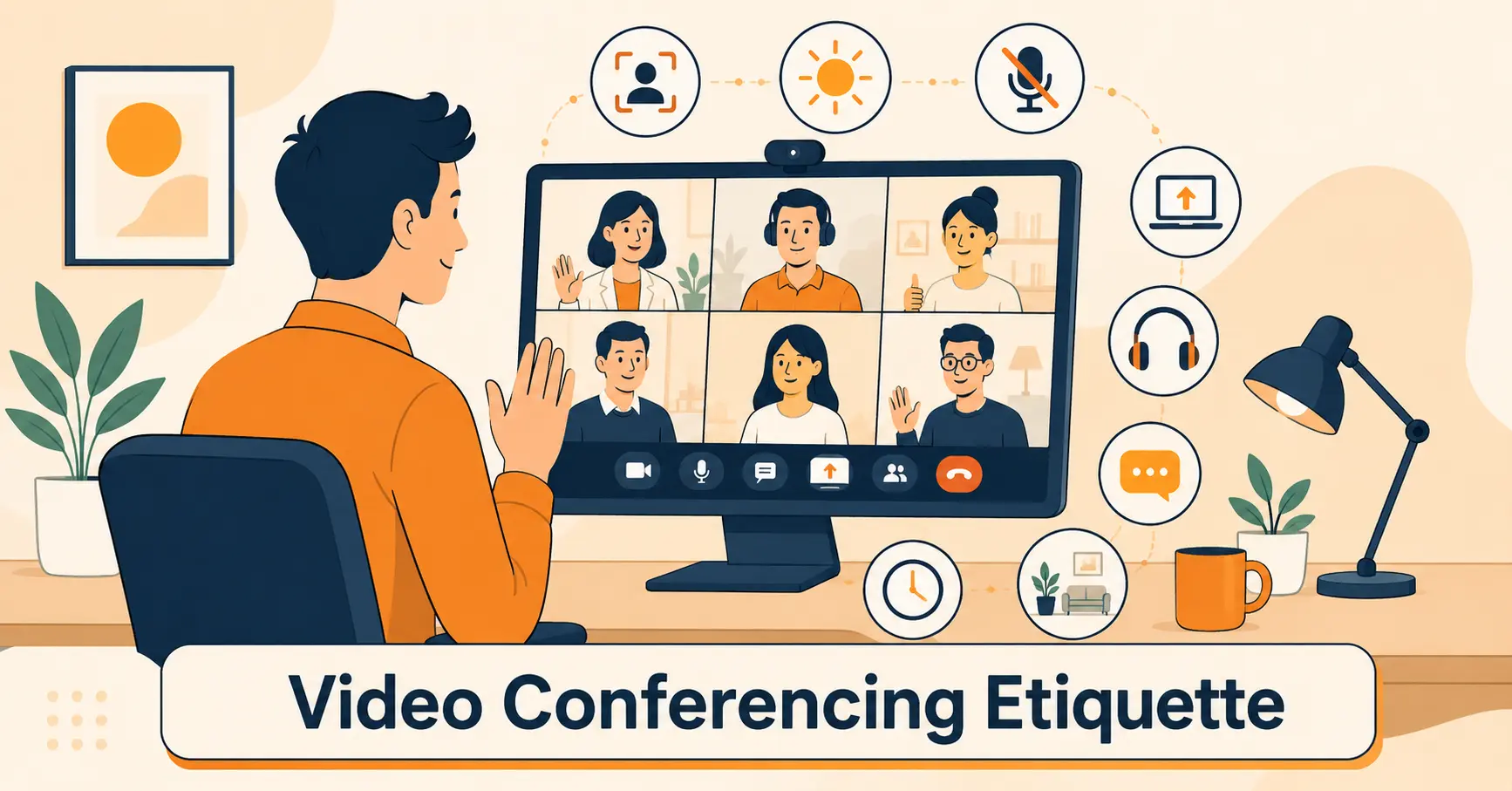
Table of Content
Try Vizitor for Free!
The 10 video conferencing etiquette tips every team should follow are: test your tech before the call, frame your camera at eye level, light your face instead of your back, use a clean background, mute by default, look at the camera when you speak, dress for the meeting you’re actually in, share your screen deliberately, handle distractions off-camera, and end the call on time and gracefully. Together, these cover what actually goes wrong on video calls: technical fumbles, bad framing and lighting, mute mishaps, distracting backgrounds, and calls that drag past their end time.
This list is deliberately narrow. It’s about how you show up on camera and audio during a video call, not the broader etiquette of running a good meeting (agendas, turn-taking, action items). For that side of things, Vizitor’s guide to virtual meeting etiquette covers the full 15 rules for remote teams. Here, the focus is specifically the video-call medium itself.
Why the medium still trips people up
Video calls have been standard for years now, and most of these mistakes should be solved problems. They aren’t. A bad camera angle, a mistimed unmute, or a screen share nobody remembered to stop still derails meetings weekly, mostly because these are small habits, not big decisions, and small habits are easy to skip when you’re rushing between calls.
Part of the problem is that nobody actually teaches this. New hires get onboarded on the company’s tools and processes, rarely on how to actually show up for a video call. The habits below are the kind of thing everyone picks up eventually through trial and error, usually after an embarrassing moment on a call that mattered.
1. Test your tech before the call, not during it
Camera working, microphone picking up your voice, internet connection stable, the right meeting link open. All of this takes thirty seconds to check before a call and can eat five awkward minutes if you check it after joining. If you’re presenting or hosting, test screen share too; a broken share mid-presentation is one of the most disruptive things that can happen in a video call.
This matters more the higher the stakes of the call. A daily team sync can absorb a minute of “can you hear me now.” A client pitch, an interview, or a board update cannot, since that dead time reads as unpreparedness rather than a minor technical hiccup.
2. Frame your camera at eye level
A laptop camera angled up from a desk shows the ceiling and your chin. A camera too high looks down on you. Eye level, with your face roughly centered in the frame, is the difference between looking present and looking like you dialed in from under a desk. This usually just means propping the laptop up or adjusting a monitor-mounted webcam once, not fiddling every call.
3. Light your face, not your back
Sitting with a bright window behind you turns you into a silhouette. The fix is simple: face a light source, or turn a lamp on in front of you, rather than having your only light source behind your shoulders. This matters more than most people think, since a dark, backlit video makes it hard for others to read expressions, which flattens the whole conversation.
4. Use a clean, non-distracting background
A messy room, a busy digital background, or a blurred-edge virtual background glitching every time you move all pull attention away from what you’re saying. A real background doesn’t need to be perfect, just tidy and calm. A virtual background is fine if it’s stable and simple, not a joke or a busy scene that competes with your face for attention.
Motion behind you is its own category of distraction: a TV playing, someone walking past a doorway, a pet jumping onto a desk. None of it needs to be eliminated entirely, but knowing what’s visible in your own frame before joining an important call is worth the ten-second check.
5. Mute by default, unmute to speak
Background noise, a side conversation, a dog, a delivery at the door, all of it broadcasts to everyone on the call if your mic is live and you’re not the one talking. Muting by default and unmuting only to speak is the single most common piece of video call etiquette advice for a reason: it’s the one habit that protects everyone else’s experience, not just yours.
Most platforms support a push-to-talk or spacebar-to-unmute shortcut for exactly this reason. Learning that one shortcut removes the awkward half-second lag of fumbling for a mute button while already mid-sentence.
6. Look at the camera when you speak
It’s tempting to watch the gallery of faces on your screen while you talk, but that reads as looking away from the person you’re addressing. Glancing at the camera lens itself, especially when making a point directly to the group, reads as eye contact on the other end, even though it feels unnatural at first.
7. Dress for the meeting you’re actually in
Nobody expects a suit for an internal stand-up, but the meeting’s actual stakes should set the bar, not how comfortable you feel at home. A client pitch or a candidate interview deserves the same presentation on video as it would in person. The rule of thumb: dress for the meeting, not the couch, and remember the camera usually shows more than just your face if you stand up or lean back unexpectedly.
8. Share your screen deliberately, and stop as soon as you’re done
Screen sharing should have a clear start (close anything you don’t want visible first) and a clear end (stop sharing the moment your point is made). Leaving a share running after you’ve finished talking, or forgetting a notification popup is visible, are both avoidable with one extra second of attention before and after.
9. Handle distractions off-camera
Notifications, a second monitor with something interesting on it, a phone buzzing on the desk, another browser tab: all of these pull focus in a way that’s often visible to everyone else, whether it’s your eyes darting to a screen or a notification sound bleeding through your mic. Closing what you don’t need before the call starts removes the temptation entirely.
This is harder in open offices or shared spaces, where ambient noise and passersby aren’t fully in your control. A closed door, headphones, or a booked private room solves most of it; a quick heads-up to the room (“I’m on a call”) handles the rest.
10. End the call on time and gracefully
Watching the clock and wrapping up on schedule, rather than letting a call drift past its end time, respects everyone’s next meeting. If you’re recording, say so clearly when it starts and stops. A clean close, thanking people and confirming next steps, leaves a better impression than a call that just fizzles out or gets cut off mid-sentence.
Common mistakes teams make with video call etiquette
Most of these mistakes aren’t really about any one person having bad habits. They’re about a team never having agreed, out loud, on what the baseline expectation actually is, so everyone defaults to whatever felt normal on their last job or their last team.
The first common mistake is treating these as personality quirks instead of habits worth coaching. “They always forget to unmute” or “their lighting is always bad” gets treated as a personal trait, when it’s usually just a habit nobody ever pointed out plainly.
The second is over-correcting into a rigid dress code or lighting mandate that feels like surveillance rather than a shared standard. The goal is a baseline everyone can hit easily, not a production studio setup.
The third is ignoring how these tips change for hybrid meetings, where some people are in a physical room and others are remote. A room full of people talking to each other while remote attendees watch a static wide shot is a video etiquette failure on the room’s side, not the remote side. Vizitor’s meeting room booking system helps here indirectly: booking the right room for a hybrid call, one actually equipped with a camera and screen, is the first step toward solving this before the call even starts.
The fourth is assuming everyone already knows this. Habits that feel obvious to someone who’s been on hundreds of video calls are genuinely not obvious to someone newer to remote work, a recent graduate, or someone joining from a culture with different meeting norms. A short, low-pressure team norms document beats letting people learn these the hard way, one awkward call at a time.
A 60-second pre-call checklist
Most of the ten tips above can be compressed into a habit you run before every call that matters: camera and mic on and tested, face lit from the front, background checked, notifications silenced, and the meeting link open with a minute to spare. It takes less time than making coffee, and it prevents the majority of avoidable video call mishaps before they happen.
When these tips matter less
A quick two-person internal call between colleagues who talk daily doesn’t need the same discipline as a client-facing video call. Camera framing and lighting matter far more when you’re being evaluated, pitching, or meeting someone for the first time than in a fast daily sync where everyone already knows each other well. Match the effort to the stakes of the specific call, not a blanket rule for every video meeting on the calendar.
The same logic applies to camera-on expectations. A large all-hands with thirty attendees doesn’t need everyone’s camera on to function; a small working session where body language and reactions actually inform the discussion benefits from it much more. Treat camera-on as a tool for the calls where it adds real value, not a default setting applied everywhere out of habit.
Better habits, better calls
Most video conferencing etiquette problems are small, fixable habits, not personality flaws. For the broader etiquette of running the meeting itself, not just the camera and mic, see Vizitor’s 15 rules for virtual meeting etiquette. And if hybrid meeting rooms are part of the problem, book a demo to see how Vizitor’s meeting room booking system helps teams get the right room ready before the call starts.
Frequently Asked Questions
See Vizitor in action check-in a visitor in under 30 seconds
Trusted by 500+ businesses. QR check-in, badge printing, NDA signing. Plans from $36/mo.